Your company may have a WordPress site that you’re happy with. Why make changes when you don’t need to?
Some companies we talk to have WordPress websites and either already use HubSpot or are considering it, but they are not ready to move their website to HubSpot Content Hub. Others rely on complex functionality or integrations that are better suited to WordPress.
In our experience, HubSpot Content Hub is sufficient for most B2B marketing websites, but you can still keep WordPress when the site’s functional requirements call for it. If your current WordPress site is working well, you can connect HubSpot and get the CRM, forms, tracking, and follow-up benefits without rebuilding the website.
Before choosing the setup, decide what the website must do. The platform should follow the requirements.
| Situation | Best approach | Why |
|---|---|---|
| Your current WordPress site meets your needs | Keep WordPress and connect HubSpot | Add CRM, forms, tracking, and follow-up without an unnecessary rebuild |
| You are planning a new B2B marketing website or a full redesign | Consider HubSpot Content Hub | Manage the website and marketing tools in one platform when the requirements fit |
| The website depends on specialized functionality or complex integrations | Keep WordPress and scope a custom connection | Preserve the functionality while defining exactly what data must move into HubSpot |
For companies that stay on WordPress, several practical WordPress and HubSpot integration points can help the two platforms work together. Based on our HubSpot consulting work with clients, here are six ways to connect them.
Need expert HubSpot consulting?
Make the most out of your investment in HubSpot. Whether it's migrating your website to HubSpot CMS, setting up HubSpot CRM for use with your company's sales process, marketing automation or a HubSpot portal assessment, our experts can help.

1. Install the HubSpot plugin for WordPress.
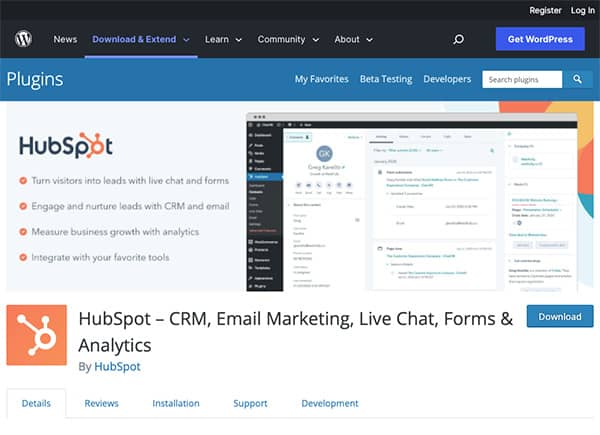
Start with the official HubSpot plugin for WordPress. It adds the HubSpot tracking code to your WordPress pages and gives your team access to HubSpot tools from the WordPress admin area.
Start with the tools that support how your team captures inquiries, records them in the CRM, and follows up.
2. Use HubSpot to track the SEO and effectiveness of your WordPress pages.
After installing the plugin, verify that the tracking code is working across the site and add the WordPress domain to HubSpot’s site-tracking settings. This gives HubSpot the information it needs to report on external pages and associate page activity with known contacts when consent and cookie settings allow it. If the code is missing or blocked, the reporting will be incomplete.
HubSpot can also scan crawlable pages and provide SEO recommendations. Use those recommendations alongside Google Search Console and your CRM data so you can see both whether a page is attracting search visibility and whether it helps produce useful inquiries.
Related article: How to Fix a Poorly Converting Website With HubSpot in Just 2 Hours Per Week
3. Embed HubSpot calls to action on your WordPress pages.
Important pages should make the visitor’s next step clear. HubSpot calls to action can be added to WordPress pages when you want to manage the message and destination in HubSpot and measure which offers earn clicks.
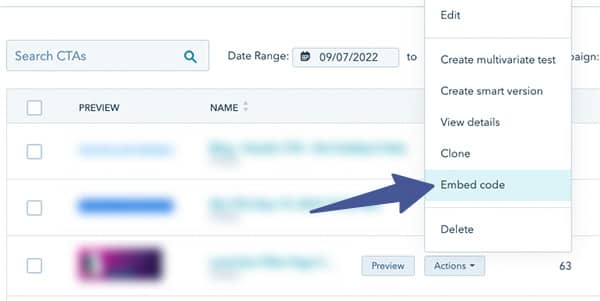
For an embedded call to action, copy the HubSpot embed code into the appropriate WordPress page. HubSpot also supports banners, pop-ups, slide-ins, and button-triggered CTAs on external pages when the tracking code is installed. Follow HubSpot’s current instructions for adding CTAs to external content because the setup differs by CTA type.
Before launch, test the CTA on desktop and mobile, click it, and confirm that it opens the correct destination. Give each important page a relevant next step that you can measure.
4. Embed a HubSpot email sign-up form on your WordPress site.
If email updates are part of your marketing plan, embed a HubSpot sign-up form on the WordPress site. The submission can create or update the contact in HubSpot and support the appropriate follow-up without manual data entry. Confirm that the form uses the right subscription type, consent language, and response for the people who complete it.
5. Integrate a HubSpot contact form on your WordPress site.
In most cases, we recommend embedding a HubSpot form directly into the WordPress website. That keeps the form, contact record, notifications, and follow-up in the same system and removes an extra integration from the process.
Gravity Forms and Contact Form 7 (two popular Wordpress form plugins) can also send submissions to HubSpot. Use that approach when the WordPress form provides functionality you need, and confirm the downstream results in HubSpot even when WordPress displays a successful submission message.
Before going live, test:
- Whether the form works correctly on the live page.
- Whether the submission appears in HubSpot with the expected field values.
- Whether internal notifications and visitor response emails are triggered as intended.
HubSpot’s non-HubSpot form capture has technical requirements and limitations, so test the exact form and plugin combination your site uses.
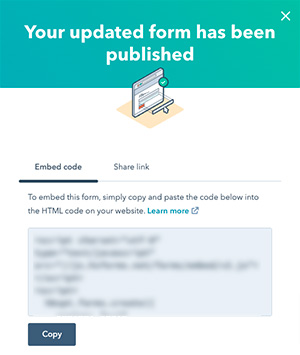
6. Test the complete lead path before launch.
Complete the integration by testing the full path as if you were a prospective customer. This confirms that the information reaches HubSpot and the intended response happens.
- Visit the page and confirm that the HubSpot tracking code is firing, subject to your consent settings.
- Submit each important form on desktop and mobile.
- Confirm that HubSpot creates or updates the correct contact record with the expected field values and source information.
- Check any lists, lifecycle stages, routing rules, or workflows that should respond to the submission.
- Verify that internal notifications and visitor response emails arrive as intended.
- Click the CTA and confirm that the destination or thank-you experience works.
After launch, compare website conversions with the contacts and inquiries that appear in HubSpot. That shows whether the connection is helping the team capture and respond to real interest.
WordPress and HubSpot can work well together when the website requirements determine the architecture and the data flow is tested before launch. Keep WordPress when the functionality calls for it. For most B2B marketing websites, HubSpot Content Hub is also capable of running the website.
Whichever path you choose, make sure the forms, CRM records, notifications, and response emails work together before you rely on the integration.

Last updated: September 2026